Overview
Introduction
Project: In order to meet the multi-tenant usage scenarios of enterprises, the platform divides the resources of one or more clusters on the platform into project environments that can achieve mutual isolation of resources and personnel. Projects can represent different subsidiaries, departments, or project teams within the enterprise. Through project management, resource isolation between project teams and quota management within tenants can be easily achieved.
Namespaces: Namespaces are smaller resource spaces that are mutually isolated under a project and are also the workspaces for users to implement job production. Multiple namespaces can be created under a project, and the total resource quota that can be occupied cannot exceed the project quota. The namespace further divides the resource quota more finely, while also limiting the size of containers (CPU, memory) under the namespace, effectively improving resource utilization.
The relationship between clusters, projects, and namespaces is as follows:
-
A project can occupy resources (CPU, memory, storage) from multiple clusters, and a cluster can allocate resources to multiple projects.
-
Multiple namespaces can be created under a project, and the total resource quota of multiple namespaces does not exceed the total project resources.
-
The resource quota of a namespace can only come from the same cluster, and a namespace can only belong to one project.
Interface Overview
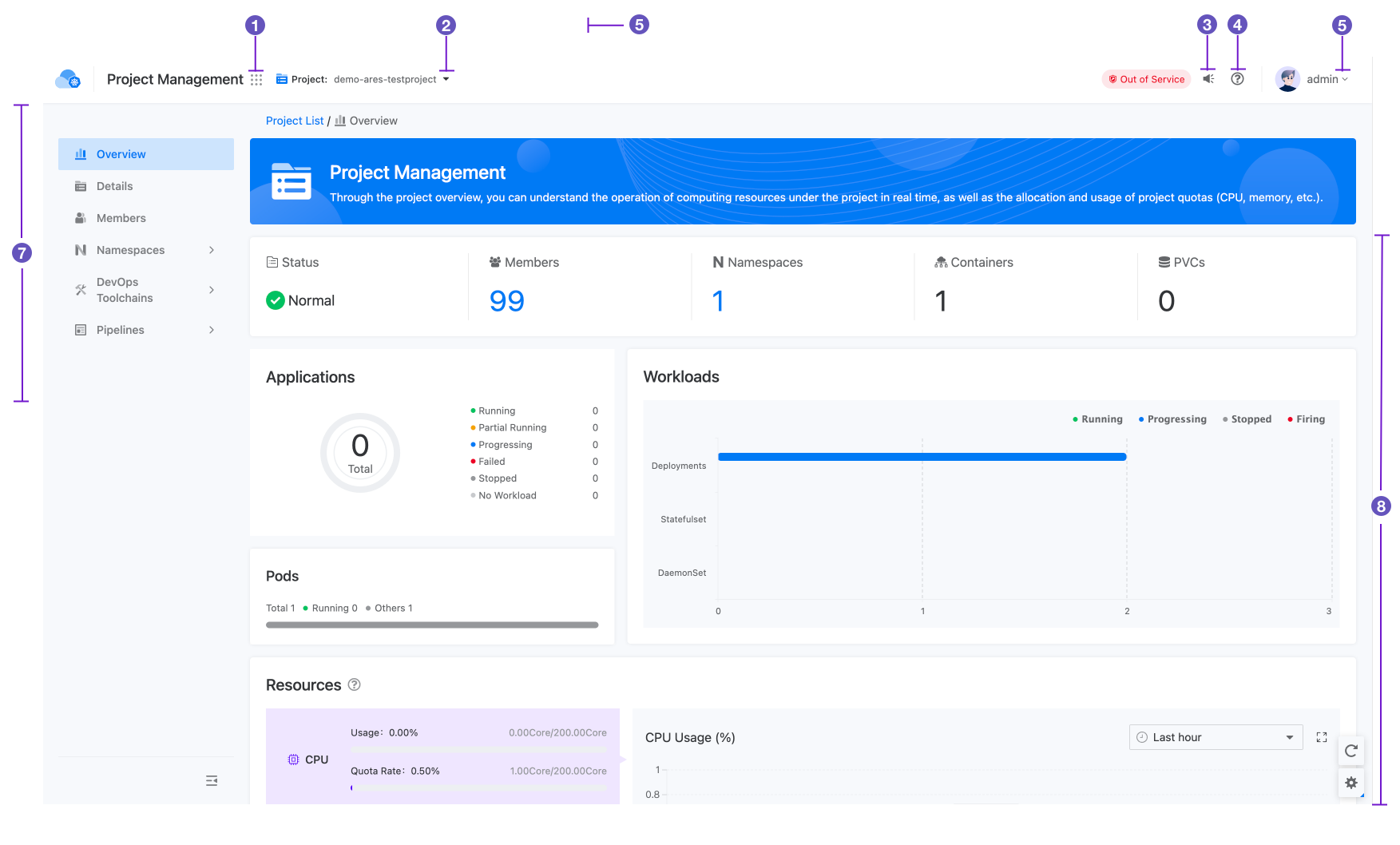
-
Product view switch entrance: Click to expand the list of product views with access permissions; click the view name to switch to the target view.
-
Project switch entrance: Click to expand the project list.
-
Historical messages: Click to expand the historical message dialog box.
-
Help documentation/platform information/platform health status entrance: Click to expand the Help, About the Platform, and Platform Health Status options.
-
Username of the currently logged-in account: Click to expand options for Profile, Chinese/English switch, and Logging out.
-
Resource path: The access path of the resource on the platform. Click Projects to return to the project list.
-
Left navigation bar: The product function navigation menu bar. Click on a menu item to open the corresponding function entry.
-
Function operation area: The area for displaying user operations or resource information.
Operation Permission Description
The platform supports role-based user permission management, which enables Personnel Access Isolation between projects and namespaces by assigning different project and namespace roles to users. This further enhances access control over resources and ensures the security of the platform’s resources.
The project management view is only visible to users with platform management permissions, project management permissions, and platform audit permissions. Taking the system-defined roles as an example:
-
Platform administrator: Has full operational permissions for the project management view, can create and manage projects, create, import, and manage namespaces, manage project/namespace members, and add, remove, or modify the quotas assigned to projects for clusters.
-
Project administrator: Can view projects within their permission scope, manage namespaces under projects, and bind resources to projects (e.g., integrated toolchains, define pipeline templates).
-
Cluster administrator: Can only perform cluster-related operations (with cluster management permissions) under projects if they are also project administrators, including adding, removing, updating cluster quotas, and importing namespaces under clusters that already exist.
-
Platform auditor: Can view all resources and audit information for projects and their resources.
Routine Operation
The following are some routine operations that apply to most functional operation scenarios on the platform, to help you use the platform’s functions smoothly in the future.
| Regular Operations | Operation Steps | Supplementary Notes |
|---|---|---|
| Open feature portal | Click the corresponding menu item in the left navigation bar. | - |
| View Resources |
|
|
| Create resource |
|
When creating a resource, you usually need to enter the parameter values related to the resource. Please refer to the functional module documentation for details. |
| Update Resource |
|
When updating a resource, usually only part of the parameter information of the resource can be updated, and it is not allowed to update the parameters that identify the key attributes of the resource, such as the resource name. Please refer to the creation operation for details on updating. |
Feature Maturity Description
The features on the platform can be divided into Alpha, Beta and GA (General Availability) versions according to their maturity.
Beta and GA (General Availability) versions have stabilized or are in the process of stable iteration, with professional team to provide guarantee and service, you can use the corresponding features in production environment according to the actual needs.
Alpha version features may have defects or serious bugs and are not available in the production environment by default, and are only recommended to be deployed in the environment built to experience or test the platform features.
To make it easier for you to distinguish the Alpha version features, the directory structure on the left side of the document will indicate which features are Alpha version features by marking Alpha on the navigation menu of the corresponding feature module or specific feature. For example: Create Subnet (Alpha).
See the table below for a description of the platform feature maturity and the recommended scope of use.
| Functional Maturity | Description | Recommended Usage |
|---|---|---|
| Alpha | - May contain defects and errors, enabling it may result in serious bugs. - Supported features may be removed without notice. - Changes to API, product scenarios, and interaction processes may cause compatibility issues, but will not be specifically declared in subsequent releases. - If the dependent Kubernetes function is in Alpha version, the corresponding platform function can only be in Alpha version. |
Alpha version features are disabled by default when deploying in a private environment, but can be enabled by configuring relevant parameters. Due to the risk of bugs and the possibility of no long-term support, it is recommended to use it only in short-term functional experience or testing environments, such as POC environments. |
| Beta | - May contain defects, but all supported features will not be easily removed. - API parameters, product design details, etc. may change with version iterations. In this case, we will provide instructions for migrating to the next version. Careful operation is required when performing editing operations, and applications that depend on this feature may need to be disabled. |
Beta version features are enabled by default and can be disabled by configuring relevant parameters when deploying. There may be incompatible changes in subsequent versions, so it is recommended to use it only in non-critical business operating environments. If there are multiple clusters that can be independently upgraded, this restriction can be relaxed and used in production environments. |
| GA | - A stable version of the feature that will appear in many subsequent versions. - API parameters, product design details, etc. may change with long-term support versions. In this case, we will provide instructions for migrating to the next version. |
Suitable for all environments, including production environments. |