Login page
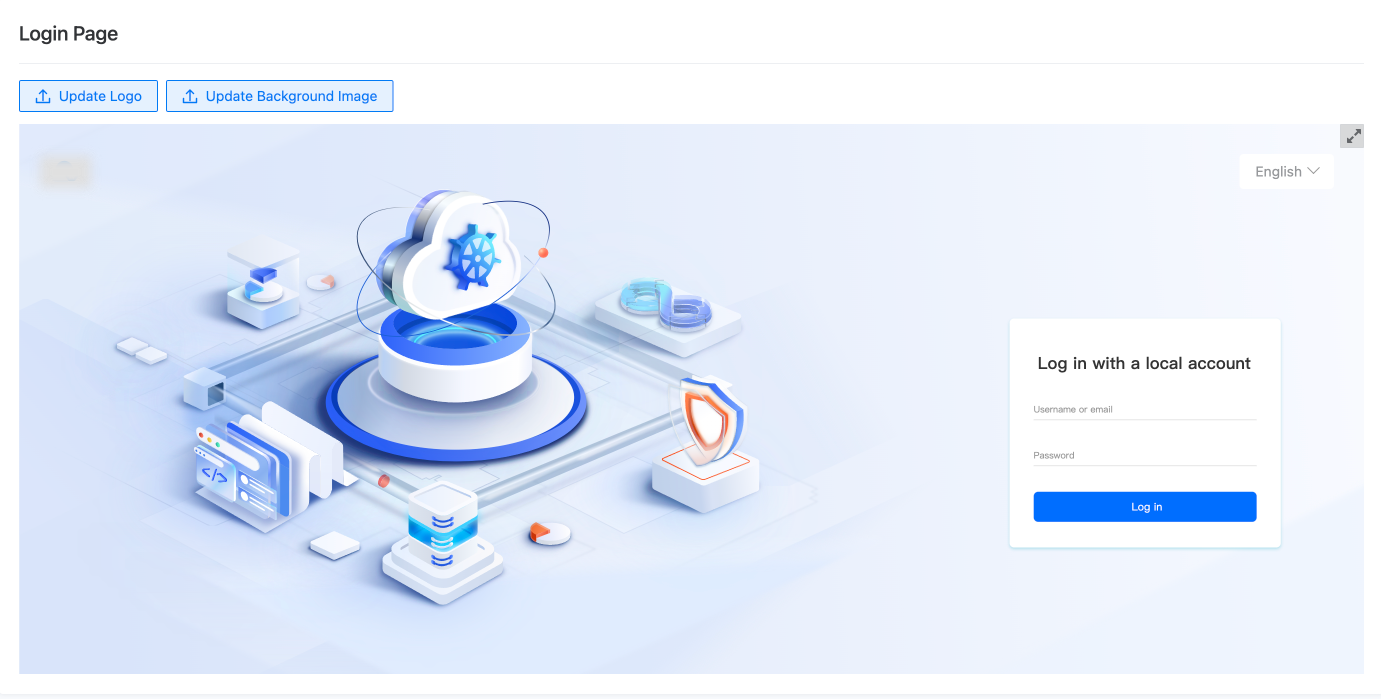
Supports replacing the default login page logo and background image with custom ones, including the option to restore the default settings.
Prerequisites
Please prepare images that meet the following specifications in advance:
-
Login page logo: It is recommended to use a transparent background image in SVG or PNG format with a height of no less than 48px. The image size should not exceed 200KB.
-
Login page background image: It is recommended to use an SVG format. For vector images, the recommended size is 1440*900, and for bitmap images, the recommended size is 1920*1080. The image size should not exceed 800KB. The background image supports adaptive display on the entire screen.
Updated Logo
-
In the left navigation bar, click Platform Settings > Login Page.
-
Click Update Logo and select the logo image to be updated stored locally.
Note:
-
If the image size does not meet the specifications, an error message will pop up at the top of the page. Please select an image that meets the specifications and upload it again.
-
After the image is successfully uploaded, you can preview the display effect in the preview area below. Click the
 icon to preview in full screen, and click the
  icon to exit full screen preview.
 -
Click Discard Changes to cancel the update operation and restore the preview effect before the logo was updated.
-
-
Click Save and Apply.
Note:
-
After clicking Save and Apply, a prompt box will pop up. Click OK to close the prompt box. The system will start processing the image and update the new logo to the platform’s login page within 1-2 minutes.
-
Click Account Name > Logging out to verify if the updated logo is successfully displayed on the login page.
-
Update background
-
Click Platform Settings > Login Page on the left navigation bar.
-
Click Update Background and select the background image to be updated from your local device.
Note:
-
If the image size does not meet the requirements, an error message will pop up at the top of the page. Please select an image that meets the requirements and upload it again.
-
After the image is successfully uploaded, you can preview the effect in the preview area below. Click the
icon to preview in full screen and click the icon to exit full screen preview. -
Click Discard Changes to cancel the update and restore the preview effect before the background image was updated.
-
-
Click Save and Apply to apply the new background image.
Tip:
-
After clicking the Got it button in the pop-up prompt, the system will start processing the image and update the new background image to the platform’s login page within 1-2 minutes.
-
Click Account Name > Logging out to verify if the updated background image is successfully displayed on the login page.
-
Restore default Settings
-
Click Platform Settings > Login Page on the left navigation bar.
-
Click Restore Default at the bottom left corner of the page.
-
Click Confirm.
After clicking Got it in the pop-up prompt, the system will start processing the image and restore the logo and background image to the default settings when the platform was deployed within 1-2 minutes.