Prepare a virtualized environment
To enable project personnel to fully use virtualization features in the container platform, platform administrators need to perform the following operations to prepare the virtualization environment.
Prerequisites
When using virtualization features, it is necessary to plan and prepare the network and storage environment in advance.
Caution:
-
If you need to connect to virtual machines directly through IP, the cluster needs to use the Kube-OVN Underlay network mode. For more information, see the best practice Preparing the Kube-OVN Underlay Physical Network .
-
It is recommended to use TopoLVM with Kubevirt, which can provide performance close to that of hardware. If performance is not a high requirement, Ceph distributed storage can also be used.
Storage Product Description TopoLVM Advantages: Lightweight and high performance.Disadvantages: Cannot be used across nodes, low reliability, and cannot provide redundancy. CephObject Distributed Storage Advantages: Can be used across nodes, high availability, and redundancy.Disadvantages: Multiple copies of disk redundancy, low utilization rate, and poor performance. -
If you use TopoLVM and configure multiple disks, ensure that the remaining storage space on the nodes where virtualization is enabled can meet the total capacity of multiple disks, otherwise virtual machine creation will fail.
-
If using Ceph distributed storage, ensure that the network where the storage is located and the network where the virtual machine is located can communicate with each other.
-
Turn on node virtualization
When the nodes of the self-built cluster are Physical Machines, you can control whether Kubernetes allows virtual machines (VMI, VirtualMachineInstance) to be scheduled to the node by turning on the node virtualization switch.
-
When the switch is turned on, newly created virtual machines are allowed to be scheduled to the physical machine node; Windows physical nodes do not support virtualization.
-
When the switch is turned off, newly created virtual machines are prohibited from being scheduled to the physical machine node, but it does not affect the virtual machines already running on the node.
Procedure
-
In the left navigation bar, click Clusters > Clusters.
-
Click Self-hosted Cluster Name.
-
On the Node tab, click the
 > Enable Virtualization on the right side of the node where the virtualization switch is to be set.
 -
Click Confirm.
Deploy kubevirt Operator
Refer to the Installation Operator document to install the KubeVirt HyperConverged Cluster Operator.
Caution: In the Install model parameter, you must select Namespace scoped and deploy it under the kubevirt namespace.
Create a hyperconverged instance
-
In the left navigation bar, click Catalog > Operators.
-
On the Deployed Operators tab, click kubevirt-operator.
-
Click Create Instance on the HyperConverged instance card.
Note: Only one HyperConverged instance needs to be created per cluster.
-
Switch to the YAML view and configure the Virtual Machine Image Repository Address according to the following example.
apiVersion: hco.kubevirt.io/v1beta1 kind: HyperConverged metadata: name: kubevirt-hyperconverged namespace: kubevirt spec: storageImport: insecureRegistries: - "192.168.16.214:60080" # Virtual Machine Image Repository AddressNote: Other parameters (such as name) can use default values.
-
Wait for the CDI and KubeVirt types of instances to be automatically created in the resource list, and the status.phase displayed in the YAML is in the
deployedstate, indicating that the HyperConverged instance has been successfully created.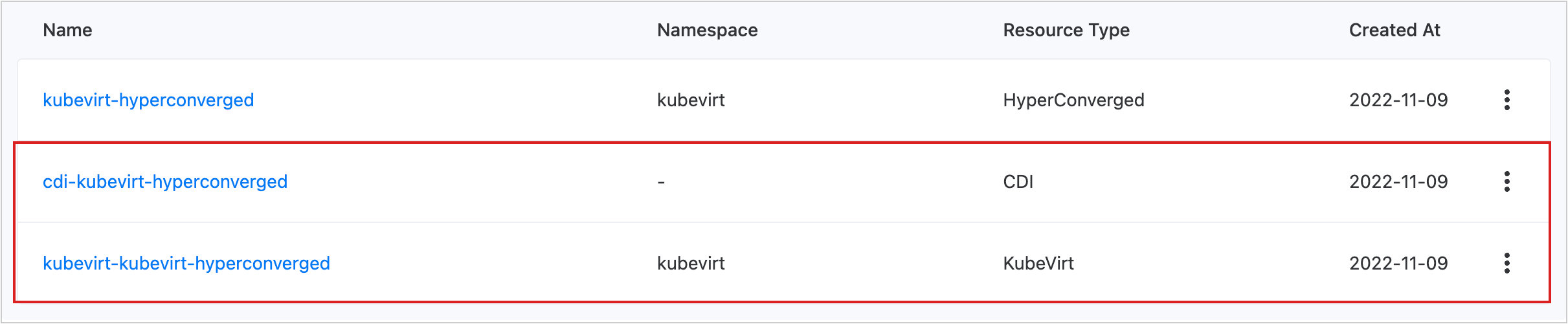
Configure virtual machine overcommit (Optional)
If you need to configure the oversubscription ratio for virtual machines, please enter the deployed KubeVirt Operator for separate configuration.
Cautions
-
Before configuring the oversubscription ratio for virtual machines, please first turn off the oversubscription ratio for the cluster where the virtual machine is located in Clusters > Clusters; or turn off the oversubscription ratio for the namespace where the virtual machine is located in Project Management > Namespaces.
-
Virtual machines only support configuring CPU oversubscription ratios, and the recommended configuration value is 2-4.
-
After enabling the oversubscription ratio for virtual machines, when creating a virtual machine, the request value of the container (requests) is fixed at Specified Limits / VM Overcommit, and the user’s YAML setting for request is invalid. For example: Assuming that the CPU resource oversubscription ratio for the virtual machine is set to 4, and the user specifies the CPU limit value as 4c when creating the virtual machine, then the CPU request value is 4c/4 = 1c.
Procedure
-
In the left navigation bar, click Catalog > Operators.
-
On the Deployed Operators tab, click kubevirt-operator.
-
Click the Resource Instances tab, update the kubevirt-hyperconverged resource instance, switch to the YAML view, and add the following field in the annotation section:
kubevirt.kubevirt.io/jsonpatch: |- [ { "op": "add", "path": "/spec/configuration/developerConfiguration", "value": {"cpuAllocationRatio": 4} # In this example CPU Overselling Ratio Configuration is 4 } ] -
Click Update.
Resource quota description
The memory resource quota of a virtual machine is limited by the memory resource quota of the namespace it belongs to. As the memory of the Pod that hosts the virtual machine is usually larger than the actual available memory of the virtual machine, it is recommended to reserve 20% of the resources. When the remaining available resources in the namespace are less than 20%, please expand in a timely manner.