Import to CCE cluster (public cloud)
Integrate the deployed CCE (Cloud Container Engine) cluster (public cloud) into the platform for unified management.
Prerequisites
-
The Kubernetes version and parameters on the cluster meet the requirements of Access Standard Kubernetes Cluster Component Versions and Parameter Requirements .
-
Make sure the cluster type is CCE cluster and the account has the permission to maintain the control panel. Turbo clusters are not supported for now.
-
By default, CCE clusters do not have access to external network resources. Before connecting to a cluster, please make sure that the cluster can access the platform’s access address.
Get Image Registry Address
-
To use the repository for deploying the platform globally, execute the following command on the control node of the global deployment to obtain the address:
if [ "$(kubectl get productbase -o jsonpath='{.items[].spec.registry.preferPlatformURL}')" = 'false' ]; then REGISTRY=$(kubectl get cm -n kube-public global-info -o jsonpath='{.data.registryAddress}') else REGISTRY=$(kubectl get cm -n kube-public global-info -o jsonpath='{.data.platformURL}' | awk -F \// '{print $NF}') fi echo "repositoryAddress is:$REGISTRY" -
If you need to use an external repository, please manually set the REGISTRY variable.
REGISTRY=<externalrepositoryaddress>  # valid examples such as:registry.example.cn:60080 or 192.168.134.43
echo "repositoryaddress is:$REGISTRY"
Determine if Additional Configuration Needed for Image Registry
-
Execute the following command to determine if the specified repository supports HTTPS access and uses a certificate issued by a trusted CA authority:
REGISTRY=<“GetrepositoryAddress”Obtained in SectionrepositoryAddress> if curl -s -o /dev/null --retry 5 --retry-delay 10 -- "https://${REGISTRY}/v2/"; then echo 'Passed the Test:repositoryUsing Trusted CA Certificate Issued by Certification Authority。No Need to Execute“Trust Non-Securerepository”Content in Section。' else echo 'Failed the Test:repositoryNot Supported HTTPS,Or Certificate is Not Trusted。Please Refer to“Trust Non-Securerepository”Configure in Section。' fi -
If the check fails, please refer to the common problem How to trust an insecure repository? .
Get cluster information
-
Ensure network connectivity with the Huawei Cloud console.
-
Access the Cluster Management page of Cloud Container Engine (CCE); find the cluster to be connected and click on the cluster name to enter the details page.
-
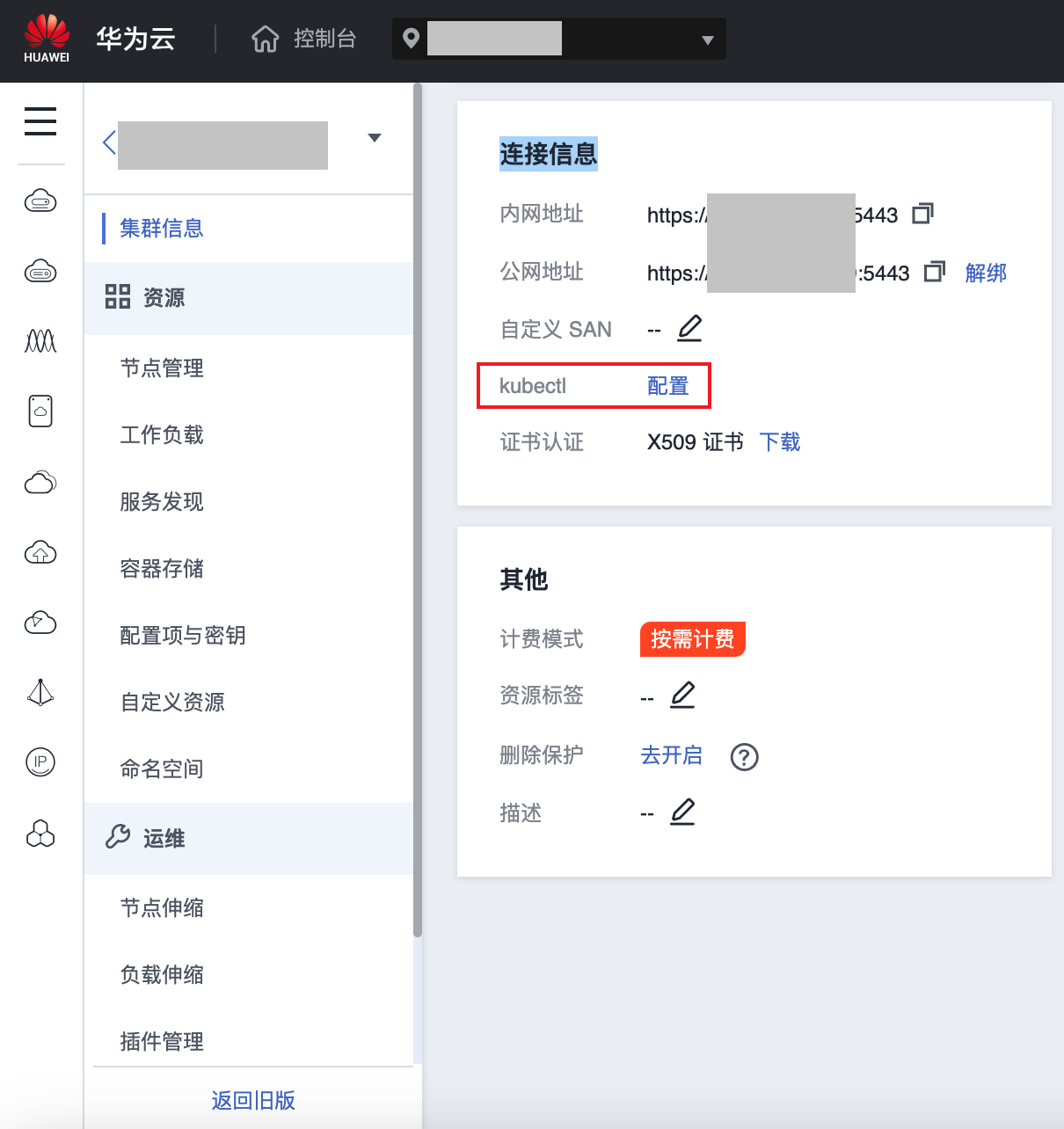
As shown in the figure below, please follow the following navigation to find the button for downloading the KubeConfig file:
Cluster Information - Connection Information - kubectl - Configuration, and download the KubeConfig file.
Get Access Cluster Token
The KubeConfig file of a public cloud cluster cannot be directly used to access the cluster.
Please refer to the FAQ How to retrieve cluster information? to obtain the access token for accessing the cluster.
Cluster of access
-
In the left navigation pane, click Clusters > Cluster of clusters.
-
Click on Cluster of access.
-
Configure the
repositoryrelated parameters according to the following instructions.Parameter Description repository The repository that stores the platform components images required by the cluster.
- Default: The repository configured when deploying global.
- Private repository: A pre-built repository that stores the platform components. You need to enter the private repository address, port, username, and password to access the repository.
- Public repository: Use a repository service located on the public network. Before using it, you need to refer to Updating public network repository cloud credentials to obtain repository authentication permissions.Cluster Information Note: Please upload the KubeConfig file, which will be automatically parsed and filled in by the platform.
Cluster Address: The access address of the API Server exposed to the outside of the cluster, used for the platform to access the API Server of the cluster.
CA Certificate: The CA certificate of the cluster.
Authentication Method: The authentication method used to access the cluster. You need to use the token (Token) with cluster management permissions created in the previous step for authentication. -
Click the “Parse KubeConfig File” button and submit the downloaded KubeConfig file from the previous step. The platform will automatically parse and fill in the relevant parameters for “Cluster Information”.
-
Click on Check Connectivity to verify the network connectivity with the connected cluster and automatically identify the type of the connected cluster, which will be displayed as a badge in the top right corner of the form.
-
After the connectivity check passes, click on Connect and confirm.
Tip:
-
Click on the
 icon on the right side of the cluster in the In Progress state to view the cluster’s execution progress (status.conditions) in the popped-up Execution Progress dialog box.
 -
After successful cluster access, you can view key information about the cluster in the cluster list. The status of the cluster is displayed as normal, and you can perform cluster-related operations.
-
Network Configuration
To ensure global connectivity with the connected cluster network, please refer to the configuration for accessing the cluster network .
What’s next
Deployment plugins
After successfully accessing the cluster, you can go to Plugin Management to select the necessary plugins for cluster deployment, including monitoring components, Log Agent, log storage components, etc.
Namespace under the tube cluster
After accessing the cluster, you can add the cluster to an existing project by creating a project based on the cluster or by adding a cluster associated with a project , and associate the newly accessed cluster with the project.
Furthermore, by performing the import namespace operation, existing Kubernetes namespaces within the cluster can be included and managed under the platform’s project.
FAQ
The Add node button is grayened after accessing the cluster. How to add nodes?
Unable to add nodes in the platform interface, please contact the cluster provider to add them.
Which certificates are supported by the certificate management function of the access cluster?
-
Kubernetes certificate: All access to the cluster only supports viewing the APIServer certificate information in the platform’s certificate management interface. It does not support viewing other Kubernetes certificates and does not support automatic rotation.
-
Platform Component Certificate: All access to the cluster can view the platform component certificate information in the platform certificate management interface and support automatic rotation.
What other features do not support access to **CCE clusters **?
-
Not supported to obtain audit data.
-
Does not support monitoring information related to ETCD, Scheduler, and Controller Manager, but supports monitoring charts for the APIServer.
-
It does not support obtaining cluster certificate-related information other than the Kubernetes APIServer certificate.