Messages
The message management function of the platform allows users with platform management-related permissions to actively push global messages within the platform to other users, including exception messages, system messages, product messages, and platform announcements.
In the Operations Center, users with platform management-related permissions can view, create, and set the type, residency time, title, and content of messages.
After the message is pushed, all users (message recipients) with access permissions can view the real-time messages pushed by the platform and the historical messages within 7 days (not exceeding 500 messages) in the views of platform management and sub-products. At the same time, message recipients can control whether to pop up non-resident message prompt boxes in the browser page in real-time by turning on/off the message push switch.
Caution: The platform only retains messages within the last 7 days, and the number of saved messages does not exceed 500. When a message is created for more than 7 days, it will be automatically deleted. When the number of messages within 7 days exceeds 500, the system will delete actual number of messages - 500 messages in chronological order from early to late according to the message creation time.
Create a message
Create and push messages to users immediately.
The platform supports creating four types of messages and supports setting whether to display messages permanently.
Procedure
-
In the left navigation bar, click Operations Center > Notifications > Message Management.
-
Click Create Message.
-
Configure the relevant parameters according to the following instructions.
Parameter Description Message Type Click to select a message type.
Exception Message: Status message of global resources, such as cluster exception, host exception, product operation exception, monitoring component exception, log component exception, etc.;
System Message: System operation message, such as successful access to cluster, successful project creation, successful user synchronization, etc.;
Product Message: Product-related messages, such as product deployment, upgrade, uninstallation, etc.;
Platform Announcement: Platform announcement information, such as system maintenance announcement, function offline announcement, etc.Resident Click to set whether the message is a resident message. Select Yes, and the message can be displayed as a resident message before the expiration time after being sent; select No, and the message prompt box will only display the message title and automatically disappear after 5 seconds (the message content can be viewed in the history message and message list). For the characteristics and general operations of resident messages, see Reference Information . Resident Expiration Time When Resident is set to Yes, this parameter is valid. It is used to set the expiration time of the resident message. The expired resident message will not pop up a message prompt on the page.
The value of the resident time cannot exceed 7 days from the difference between the current time.Title The title of the message, with a maximum length of 38 characters.
Tip: After the non-resident message is pushed, only the message title will be displayed in the message prompt box (the message content can be viewed in the history message and message list).Content The content of the message, with a maximum length of 100 characters.
Tip: After the non-resident message is pushed, the message content can be viewed in the history message and message list. -
Click Create and Send to pop up a message prompt box at the top of the page.
Note: If you have turned off the Push switch (gray) in the history message dialog box, you will not be able to see the non-resident message push prompt box on the page.
Support canceling the push of persistent messages that have not expired. After canceling the push, the persistent message status changes to expired, and the prompt box for the message will no longer pop up on the user’s browser page.
If you need to view the message, you can go to the message list or the historical message dialog to view it.
Note: Canceling the push of non-persistent messages and expired persistent messages is not supported.
Procedure
-
In the left navigation bar, click Operations Center > Notifications > Message Management.
Tip: Messages with the icon
 next to their names are persistent messages that have not expired. When you hover over the icon, you can view the expiration time of the persistent message. When the icon is
  , it means that the persistent message has expired.
 -
Click the
 > Cancel Push on the right side of the persistent message that needs to be canceled.
 -
Click Confirm to cancel the push of the persistent message.
At the same time, the status of the persistent message changes to Expired.
Historical message management
All users of the platform can view the historical message records of the platform’s recent 7-day push through the historical message dialog, and can set whether to pop up non-persistent message prompts on the browser page pushed by the platform.
Caution: The platform only retains messages within the last 7 days, and the number of saved messages does not exceed 500. When a message is created for more than 7 days, it will be automatically deleted; when the number of messages within 7 days exceeds 500, the actual number - 500 messages will be deleted in chronological order from early to late according to the message creation time.
Procedure
-
In the top navigation bar of the platform, click the
 in the upper right corner to open the historical message dialog.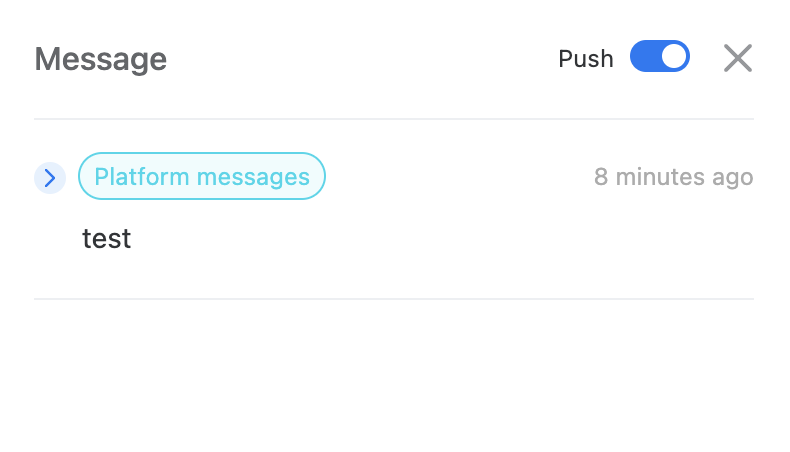
Note:
-
The message push switch in the historical message dialog is turned on by default. When you turn off the push switch, the non-resident message prompt box for system real-time push will not pop up again until you clear the browser cache (cookies, cache, and other data) (you can view it in the historical message), but the resident message prompt box will still pop up. When you log in to the platform after clearing the browser cache or changing the browser to log in to the platform, the message push switch is restored to the default on state, and all message prompt boxes pushed by the platform can pop up normally.
-
When you click
 to close the resident message prompt box, the closed message prompt box will no longer pop up until you clear the browser cache (cookies, cache, and other data) or change the browser to log in to the platform. After you clear the browser cache or change the browser to log in to the platform, the resident message prompt box that has not expired on the platform will pop up.
 -
Click
 on the left side of the message type to expand the message content.
-
Delete message
Delete messages that are not stored on the platform. After the message is deleted, the record will also be deleted from the historical message.
Note: After the message is created on the platform, it can only be saved for 7 days, and the platform will automatically delete messages that have been created for more than 7 days.
Procedure
-
In the left navigation bar, click Operations Center > Notifications > Message Management.
-
Click
on the right side of the message to be deleted > Delete, and confirm.
Reference information
For users without message management permissions, please refer to the following table for instructions on viewing and setting resident and non-resident messages.
| Permanent Message | Non-permanent Message | |
|---|---|---|
| Display Method | After the permanent message is pushed, it will pop up in the upper right corner of the interface in the form of a prompt box and will remain displayed. | After the non-permanent message is pushed, it will pop up in the middle of the top of the interface in the form of a message prompt box, and only the message title will be displayed in the prompt box (the content can be viewed in the history message dialog box or message list). |
| Close the popped-up message prompt box | Click the in the upper right corner of the prompt box to close the permanent message prompt box. Note: The permanent message that has been closed will not pop up again until you clear the browser cache (cookies, cache, and other data) or log in to the platform with a different browser. |
The prompt box will disappear automatically after 5 seconds. |
| Close the new message pop-up reminder | - | Turn off the Push switch (gray) in the history message dialog box. The non-permanent message prompt box will not pop up again until you clear the browser cache (cookies, cache, and other data) or log in to the platform with a different browser. |
| Restore the message pop-up reminder | After clearing the browser cache or logging in to the platform with a different browser, the permanent message prompt box that has been closed but has not yet expired will pop up again. | Turn on the Push switch (blue) in the history message dialog box, or clear the browser cache (or log in to the platform with a different browser). When the platform pushes a new non-permanent message, the message prompt box will pop up. Note: The message push switch in the history message dialog box is on by default and will be restored to the default state every time the browser cache is cleared. |