How to Configure a External LB for Gitlab Instance
Terminology
| Term | Description |
|---|---|
| LB | Load Balancer |
| External LB | Load balancer outside the cluster, such as f5 |
| Cluster LB | Load balancer within the cluster |
Scenario Description
Typically, when deploying a Gitlab instance via a domain name, the domain certificate is configured on the cluster LB. However, if you want to configure the domain certificate on the external LB (such as f5), additional configuration is required.
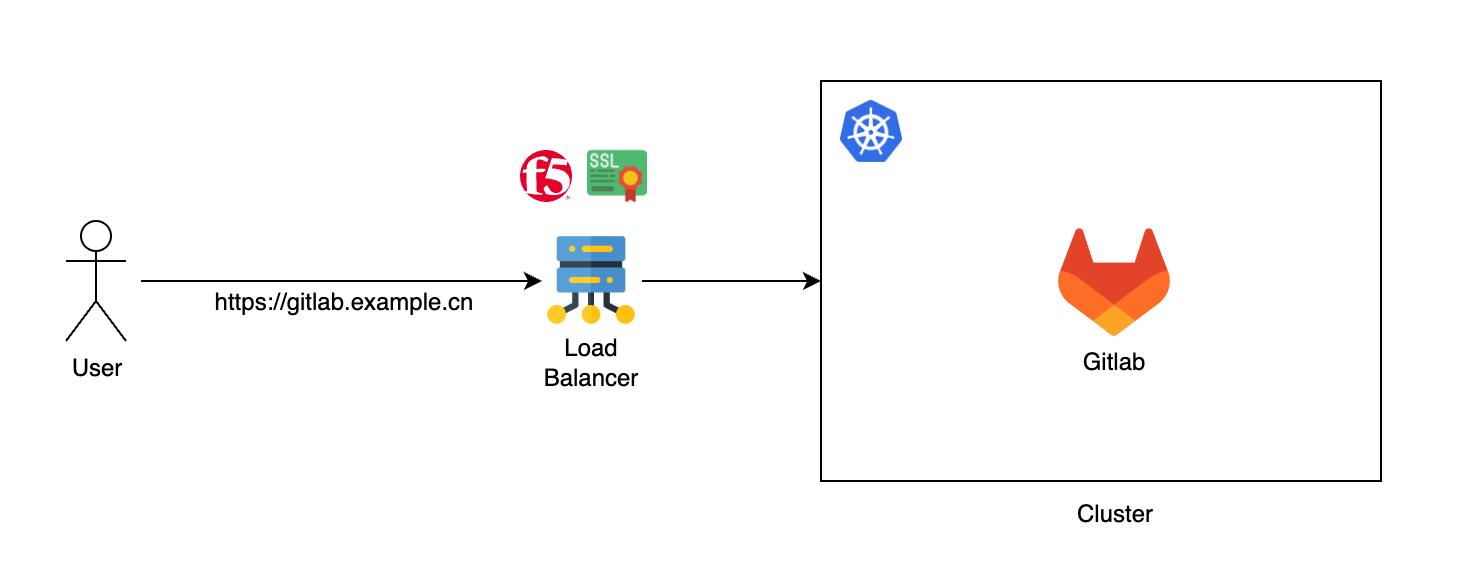
Common scenarios:
- Deploy Gitlab via NodePort, then forward traffic to the NodePort through the external LB.
- Deploy Gitlab via domain name (HTTP), then forward traffic to the cluster LB through the external LB, and finally the cluster LB forwards it to the Gitlab service.
Configuration Method
There are various types of load balancers, but their principles and configuration methods are similar. You only need to set the HTTP Headers correctly when the load balancer forwards the traffic. The required HTTP Headers are shown in the table below:
| HTTP Header | Description | Example Value |
|---|---|---|
| Host | Original request domain | gitlab.example.cn |
| X-Forwarded-Proto | Original request protocol | https |
| X-Forwarded-Host | Original request domain + port | gitlab.example.cn:443 |
| X-Forwarded-Port | Original request port | 443 |
| X-Forwarded-Ssl | Whether the original request uses SSL | on |
Below is the configuration process through an actual case, for example, to access the Gitlab tool UI page via the domain https://gitlab.example.cn and clone code normally.
Scenario 1: Configure External LB to Forward to Gitlab Service’s NodePort Service
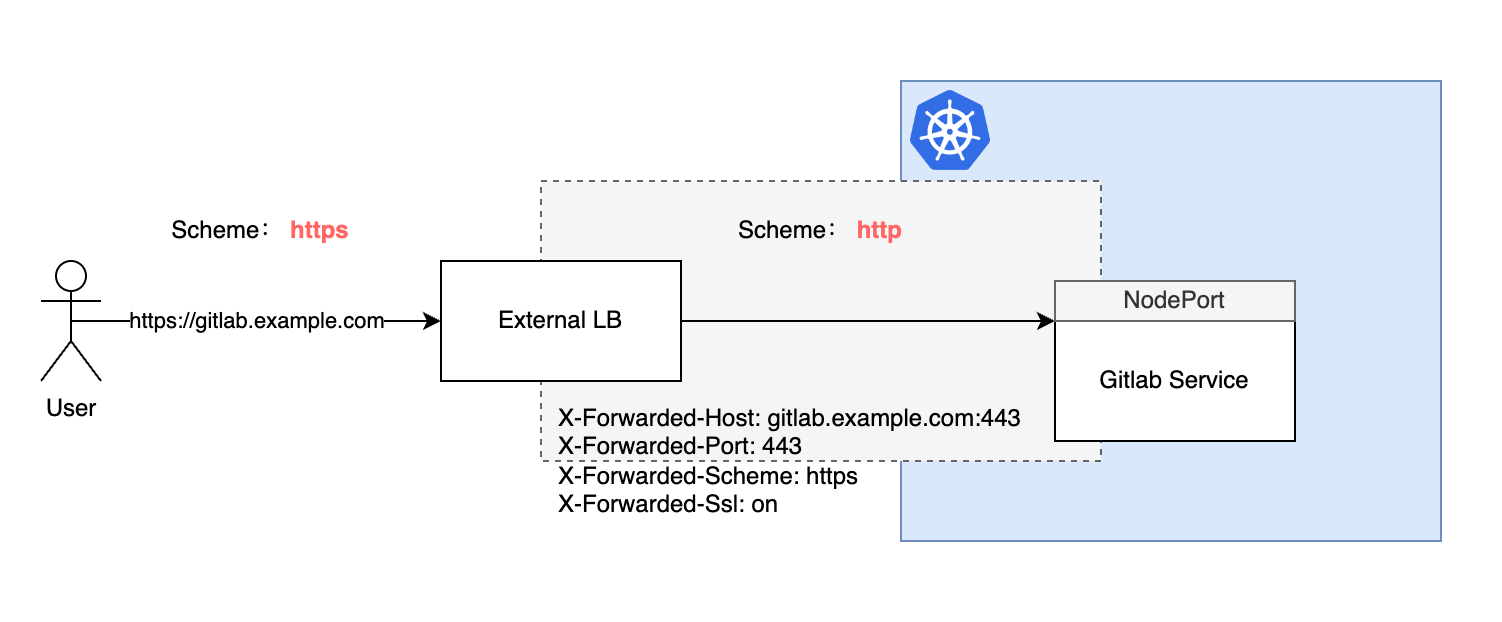
Prerequisites
- Gitlab has been deployed via NodePort.
- Gitlab service can be accessed via
http://<node-ip>:<node-port>(e.g., http://192.168.1.100:30000).
Modify Gitlab Instance Access Address
- In the left navigation bar, click Toolchain Management > Instance Management.
- Edit the corresponding Gitlab instance and change the URL to
https://gitlab.example.cn.
Configure External LB
Take Nginx configuration as an example, set the forwarding address to the NodePort address corresponding to the Gitlab service:
server {
    listen 443 ssl;
    server_name https://gitlab.example.cn;

    # SSL configuration
    ssl_certificate /etc/nginx/certs/domain.pem;
    ssl_certificate_key /etc/nginx/certs/domain.key;

    ssl_protocols TLSv1.2 TLSv1.3;
    ssl_ciphers HIGH:!aNULL:!MD5;

    location / {
        # Set the forwarding address to the NodePort address corresponding to the Gitlab service
        proxy_pass http://192.168.1.100:30000;
        proxy_set_header Host $host;
        proxy_redirect   off;
        proxy_set_header X-Real-IP $remote_addr;
        proxy_set_header X-Forwarded-For $proxy_add_x_forwarded_for;
        proxy_set_header X-Forwarded-Host $server_name:$server_port;
        proxy_set_header X-Forwarded-Port $server_port;
        proxy_set_header X-Forwarded-Proto $scheme;
        proxy_set_header X-Forwarded-Ssl on;
    }
}
Test Verification
Access https://gitlab.example.cn in the browser, you should be able to access the Gitlab service UI page normally and clone code successfully.
Scenario 2: Configure External LB to Forward to Cluster LB
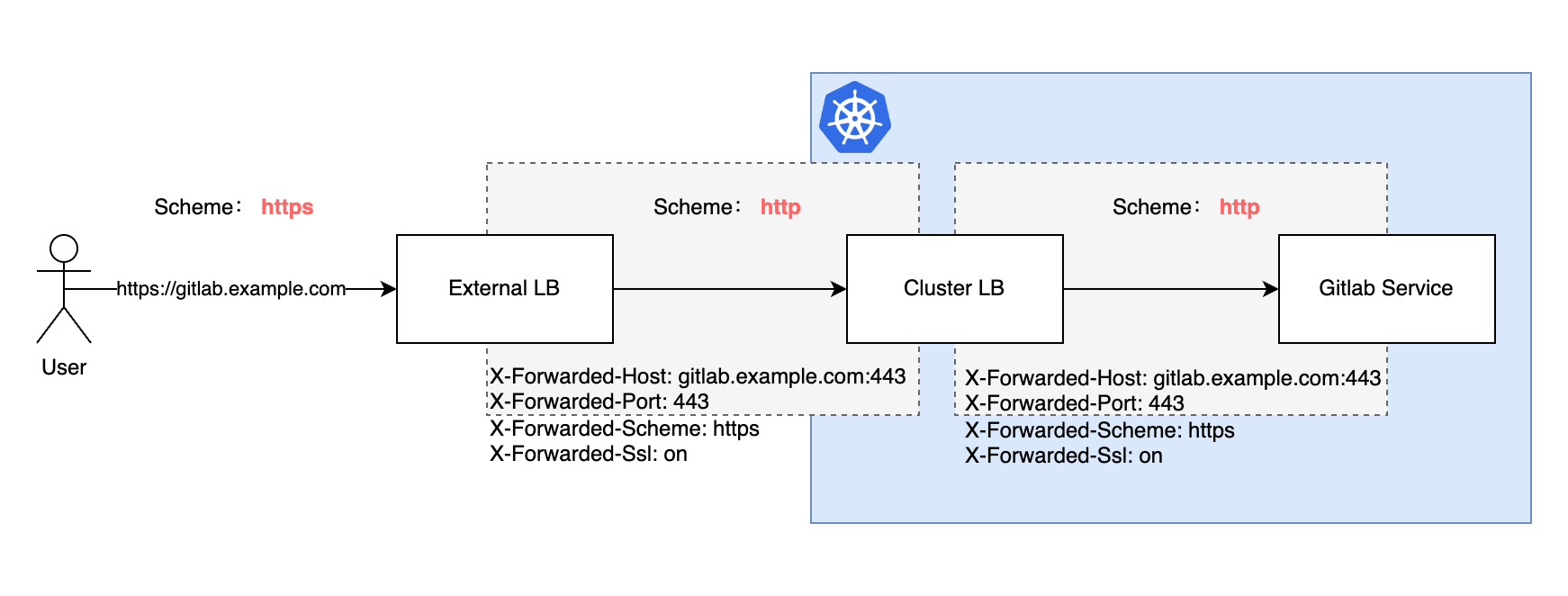
Prerequisites
- Gitlab has been deployed via Ingress with HTTP protocol.
- The cluster where Gitlab is located has already configured a cluster LB, and it can be accessed externally through the IP bound to the cluster LB (e.g., http://192.168.100.10:80).
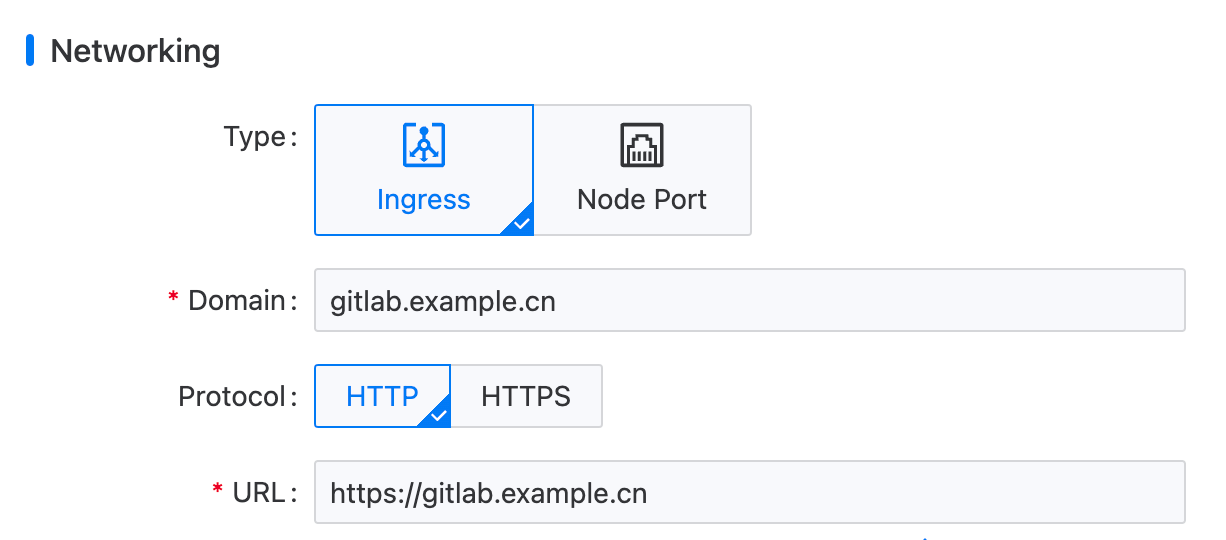
Modify Gitlab Instance Access Address
- In the left navigation bar, click Toolchain Management > Instance Management.
- Edit the corresponding Gitlab instance.
- Change the Domain to
gitlab.example.cn. - Change the Protocol to
HTTP. - Change the URL to
https://gitlab.example.cn.
- Change the Domain to
Configure External LB
Take Nginx configuration as an example, set the forwarding address to the IP address corresponding to the cluster LB:
server {
    listen 443 ssl;
    server_name https://gitlab.example.cn;

    # SSL configuration
    ssl_certificate /etc/nginx/certs/domain.pem;
    ssl_certificate_key /etc/nginx/certs/domain.key;

    ssl_protocols TLSv1.2 TLSv1.3;
    ssl_ciphers HIGH:!aNULL:!MD5;

    location / {
        # Set the forwarding address to the IP address of the cluster LB
        proxy_pass http://192.168.100.10;
        proxy_set_header Host $host;
        proxy_redirect   off;
        proxy_set_header X-Real-IP $remote_addr;
        proxy_set_header X-Forwarded-For $proxy_add_x_forwarded_for;
        proxy_set_header X-Forwarded-Host $server_name:$server_port;
        proxy_set_header X-Forwarded-Port $server_port;
        proxy_set_header X-Forwarded-Proto $scheme;
        proxy_set_header X-Forwarded-Ssl on;
    }
}
Test Verification
Access https://gitlab.example.cn in the browser, you should be able to access the Gitlab service UI page normally and clone code successfully.