Receiving Alert Notifications for Computing Components via Enterprise WeChat
To ensure the normal operation of businesses running on the platform, the platform’s operations center combines monitoring, alerting, and notification functions to help you understand the usage of business-related resources in real time and monitor the operation of your business. Moreover, when anomalies occur, it can send alert notifications to you in a timely manner, helping you quickly locate and handle resources in an alert state to ensure the smooth operation of your business.
This article introduces the configuration of alerts and notifications based on the platform and how to receive alert notifications for computing components via Enterprise WeChat.
Implementation
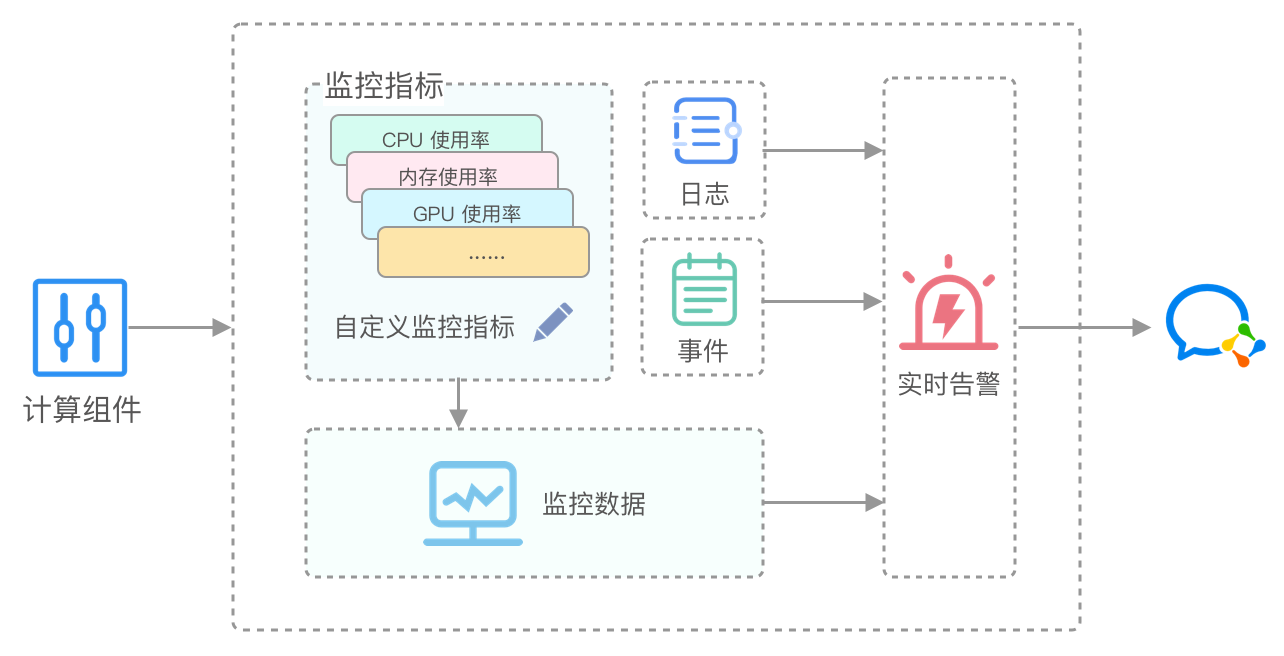
The principle of receiving alert notifications for computing components via Enterprise WeChat is shown in the following figure.
Step 1 - Add an Enterprise WeChat Group Robot
This article takes the Mac desktop client as an example to explain how to add a group robot to an Enterprise WeChat group. For more operations on other clients and detailed descriptions of group robot functions, please refer to the Enterprise WeChat official documentation .
Prerequisites
-
You have logged in to the Enterprise WeChat client.
-
You have created an Enterprise WeChat group for receiving alert notification messages.
Procedure
-
Open the Enterprise WeChat client.
-
Add a group robot to the group.
-
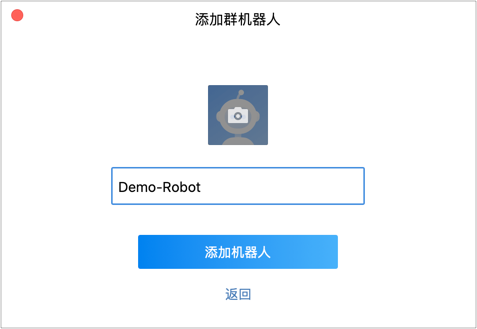
After entering the robot name, click Add Robot.
-
After the robot is successfully added, the Webhook address of the robot will be displayed in the pop-up dialog box. Click Copy Address to copy the address and proceed to the operations center of the platform for subsequent operations.
Step 2 - Configure Notifications
With notifications, you can combine the platform’s monitoring and alerting functions to send platform warning information to notification objects in a timely manner, reminding relevant personnel to take necessary measures to solve problems or avoid faults.
Configuring Enterprise WeChat notifications requires the following resources: notification templates, notification recipients, and notification policies. The following will explain the complete operation process of configuring Enterprise WeChat notifications.
Creating Notification Templates
-
In the left navigation bar, click Operations Center > Notifications.
-
Switch to the Notification Templates tab.
-
Click Create Notification Template.
-
Configure the name, message type, language type, and template notification content of the notification template.
Note: If there are no special requirements, the message type, language type, and notification template can all use the default configuration.
-
Click Create.
Creating Notification Contact Groups
-
In the left navigation bar, click Operations Center > Notifications.
-
Switch to the Notification Contact Groups tab.
-
Click Create Notification Contact Group.
-
Configure the relevant parameters according to the following parameter description and example.
- Interface Callback: Select Enterprise WeChat and enter the robot address.
-
Click Create.
Creating Notification Policies
-
In the left navigation bar, click Operations Center > Notifications.
-
Click Create Notification Policy.
-
Configure the basic information of the notification policy and add and configure notification methods according to the following parameter description and example.
-
Notification Contact Group: Select the notification contact group created in the previous step.
-
Notification Method: Check Interface Callback.
-
Notification Template: Select the notification template created in the previous step.
-
-
Click Create.
Step 3 - Configuring Alarms
Create an alarm policy according to the Creating Alarm Policies document and requirements.
Result Verification
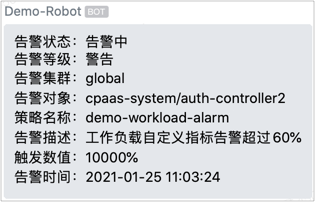
When an alarm rule in the configured alarm policy triggers an alarm, you will receive a robot notification message in the Enterprise WeChat group with a group robot configured, as shown in the following figure.