
Configuring SR-IOV
By configuring the physical server nodes to support the creation of virtual machines with SR-IOV (Single Root I/O Virtualization) network cards, lower latency for virtual machines is achieved, along with support for standalone IPv6 as well as dual-stack IPv4/IPv6 functionality.
TOC
TerminologyConstraints and LimitationsPrerequisitesChartImagesProceduresResult VerificationRelated NotesKernel Parameter Configuration for CentOS Virtual MachinesTerminology
Constraints and Limitations
The SR-IOV feature relies on glibc and only supports glibc versions 2.34 and above. However, both Kylin V10 and CentOS 7.x operating systems do not support this version, and thus, SR-IOV functionality cannot be used on these two operating systems.
Prerequisites
Obtain the following charts and images and upload them to the image repository. This document uses the repository address build-harbor.example.cn as an example. For specific methods to obtain the charts and images, please contact the relevant personnel.
Chart
build-harbor.example.cn/example/chart-sriov-network-operator:v3.15.0
Images
build-harbor.example.cn/3rdparty/sriov/sriov-network-operator:4.13build-harbor.example.cn/3rdparty/sriov/sriov-network-operator-config-daemon:4.13build-harbor.example.cn/3rdparty/sriov/sriov-cni:4.13build-harbor.example.cn/3rdparty/sriov/ib-sriov-cni:4.13build-harbor.example.cn/3rdparty/sriov/sriov-network-device-plugin:4.13build-harbor.example.cn/3rdparty/sriov/network-resources-injector:4.13build-harbor.example.cn/3rdparty/sriov/sriov-network-operator-webhook:4.13build-harbor.example.cn/3rdparty/kubectl:v3.15.1
Procedures
Note: All commands mentioned below are executed in the terminal.
Enabling SR-IOV in the Physical Machine's BIOS
Before configuration, use the following command to check the motherboard information.
The operation to enable SR-IOV in the BIOS varies among server manufacturers. Please refer to the corresponding manufacturer's documentation. Generally, the steps are as follows:
-
Reboot the server.
-
When the brand logo is displayed on the screen during BIOS POST, press the F2 key to enter the system setup.
-
Click Processor Settings > Virtualization Technology, and change Virtualization Technology setting to
Enabled. -
Click Settings > Integrated devices, and change SR-IOV Global Enable setting to
Enabled. -
Save the configuration and reboot the server.
Enabling IOMMU
The operation to enable IOMMU may vary across different operating systems. Please refer to the corresponding operating system documentation. This document uses CentOS as an example.
-
Edit the
/etc/default/grubfile and addintel_iommu=on iommu=ptto theGRUB_CMDLINE_LINUXconfiguration item. -
Execute the following command to generate the
grub.cfgfile. -
Reboot the server.
-
Execute the following command, and if the output shows
IOMMU enabled, it indicates that the enabling is successful.
Loading the VFIO Module in the System Kernel
-
Execute the following command to load the vfio-pci module.
-
Once loaded, execute the following command. If the configuration information can be displayed normally, then the VFIO kernel module has been loaded successfully.
Creating VF Devices
-
Execute the following command to see the currently supported VF devices.
The output information indicates as follows:
-
0000:05:00 .1: The PCI address of the SR-IOV physical NIC enp5s0f1.
-
0000:05:00 .0: The PCI address of the SR-IOV physical NIC enp5s0f0.
-
sriov_totalvfs: Number of supported VFs.
-
sriov_numvfs: Current number of VFs.
-
-
Execute the following command to get information on the physical machine's NIC.
-
Execute the command
ethtool -i <NIC name>to obtain the corresponding physical NIC's PCI address, as shown below. -
Execute the following command to create a VF. This document takes configuring the enp5s0f1 NIC as an example. If multiple NICs need to be virtualized, all of them need to be configured.
-
Execute the following command to check if the VFs were created successfully.
Note: You can see the configured 8 VF addresses, such as
05:10.1. These VF addresses need to be supplemented with the Domain Identifier, resulting in the final format:0000:05:10.1.
Binding the VFIO Driver
-
Download the binding script, and execute the
python3 dpdk-devbind.py -b vfio-pci <VF address with domain identifier>command to bind the 8 VFs of the enp5s0f1 NIC to the vfio-pci driver, as shown below. -
After binding successfully, execute the following command to check the binding results. Look for the already bound VFs in the Network devices using DPDK-compatible driver area in the output result. Among them, the VF device ID is
10ed.
Deploying the Multus CNI Plugin
-
Go to Administrator.
-
In the left navigation bar, click Cluster Management > Clusters.
-
Click the name of the virtual machine cluster and switch to the Plugins tab.
- Deploy the Multus CNI plugin.
Deploying the sriov-network-operator
Execute the following command to deploy the sriov-network-operator.
Setting Node Role Identifier Labels for Physical Nodes
Note: Before performing this operation, ensure that the Pod of the sriov-network-operator is running normally.
-
Go to Administrator.
-
In the left navigation bar, click Cluster Management > Clusters.
-
Click the cluster name and switch to the Nodes tab.
-
Click the physical node that supports SR-IOV ⋮ > Update Node Labels.
-
Set the node label as follows:
node-role.kubernetes.io/worker: ""
-
Click Update.
Checking if the Resources are Created Successfully
In the CLI tool, execute the command kubectl -n cpaas-system get sriovnetworknodestates to check if the sriovnetworknodestates resource has been created successfully. If you see similar output below, it indicates that creation was successful. If the resource creation fails, check if the Multus CNI plugin and sriov-network-operator have been deployed successfully.
Setting SR-IOV Node Feature Labels for Physical Nodes
Note: Before performing this operation, ensure that the sriovnetworknodestates resource has been successfully created.
-
Go to Administrator.
-
In the left navigation bar, click Cluster Management > Clusters.
-
Click the cluster name and switch to the Nodes tab.
-
Click the physical node that supports SR-IOV ⋮ > Update Node Labels.
-
Set the node label as follows:
feature.node.kubernetes.io/network-sriov.capable: "true"
Checking NIC Device Support
-
Execute the command
lspci -n -s <VF address with domain identifier>to obtain the current NIC device's vendor ID and device ID, as shown below.The output indicates:
- 8086: Vendor ID.
- 154d: Device ID.
-
Execute the command
lspci -s <VF address with domain identifier> -vvv | grep Ethernetto obtain the current NIC name, as shown below. -
In the cpaas-system namespace, locate the configuration file named
supported-nic-idswith type ConfigMap, and check if the current NIC's configuration information is in the support list within its data section.Note: If the current NIC is not in the support list, you need to refer to Step 4 to add the NIC to the configuration file. If the current NIC is already in the support list, skip Step 4.
-
Add the current NIC to the data section of the support list in the format
<NIC Name>: <Vendor ID> <Device ID> <VF Device ID>, as shown below.Parameter configuration explanation:
- Intel_Corporation_X520: The name of the NIC, which can be customized.
- 8086: Vendor ID.
- 154d: Device ID.
- 10ed: VF Device ID, which can be found in the binding results.
Configuring IP Address
Log in to the switch to configure DHCP (Dynamic Host Configuration Protocol).
Note: If it is not possible to use DHCP, please manually configure the IP address in the virtual machine.
Result Verification
-
Go to Container Platform.
-
In the left navigation bar, click Virtualization > Virtual Machines.
-
Click Create Virtual Machine, and when adding an auxiliary network card, select SR-IOV as the Network Type.
-
Complete the creation of the virtual machine.
-
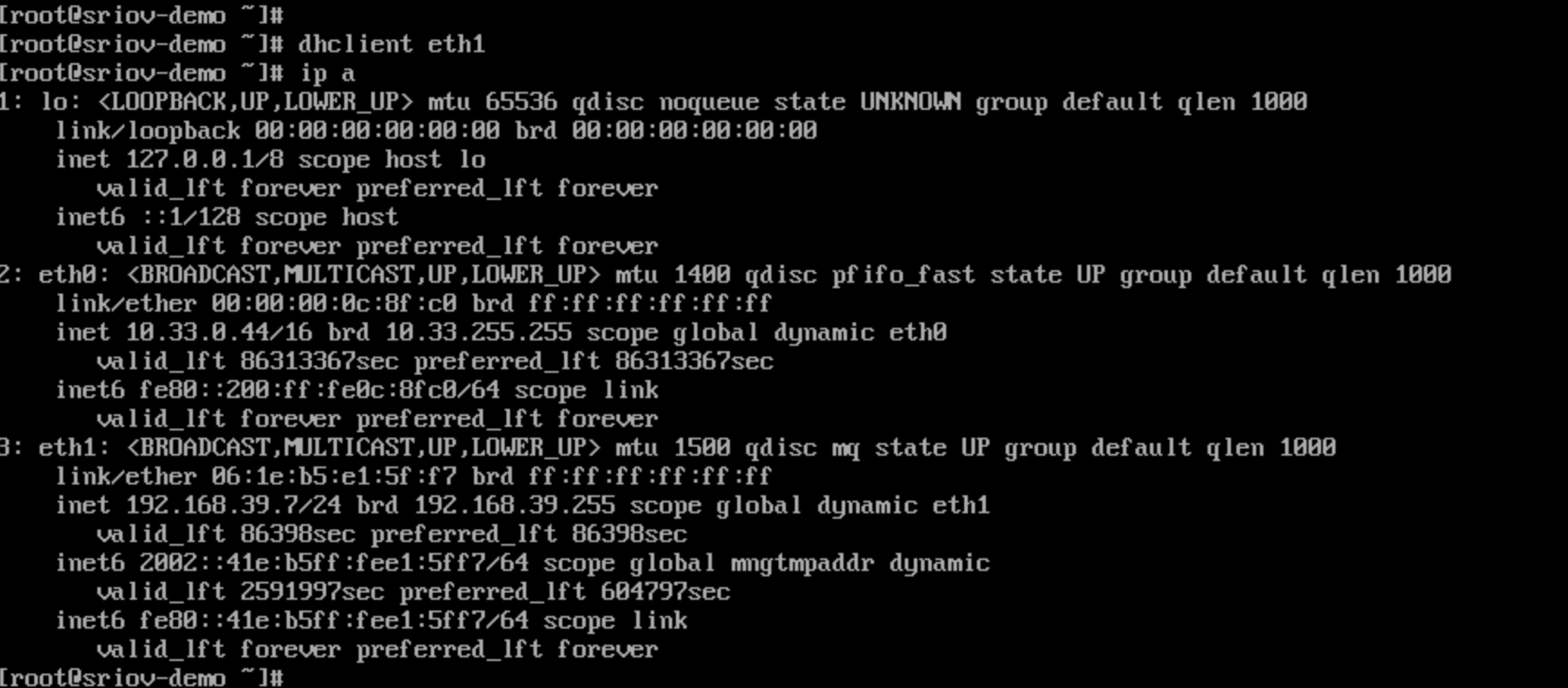
Access the virtual machine through VNC, you should see that eth1 has successfully obtained an IP address, indicating that the configuration has been successful.
Related Notes
Kernel Parameter Configuration for CentOS Virtual Machines
After the CentOS virtual machine uses the SR-IOV NIC, it is necessary to modify the kernel parameters for the corresponding NIC. The specific steps are as follows.
-
Open a terminal and execute the following command to modify the kernel parameters for the corresponding NIC. Replace the
<NIC Name>part of the command with the actual NIC name. -
Execute the following command to load and apply all kernel parameter commands from the /etc/sysctl.conf file, so that the kernel configuration takes effect. When the value in the output information is 2, it indicates that the modification was successful.
Output information: