
Roxctl CLI Installation
This guide provides instructions for installing, configuring, and using the roxctl command-line interface (CLI) for Alauda Container Security. The CLI is available for Linux, macOS, Windows, and as a container image.
TOC
Overview
- roxctl is a CLI tool for managing and interacting with Alauda Container Security.
- Supported platforms: Linux, macOS, Windows.
- After installation, verify the CLI version to ensure correct setup.
Installation
Install on Linux
Supported architectures:
amd64,arm64,ppc64le,s390x
Steps:
-
Determine your architecture:
-
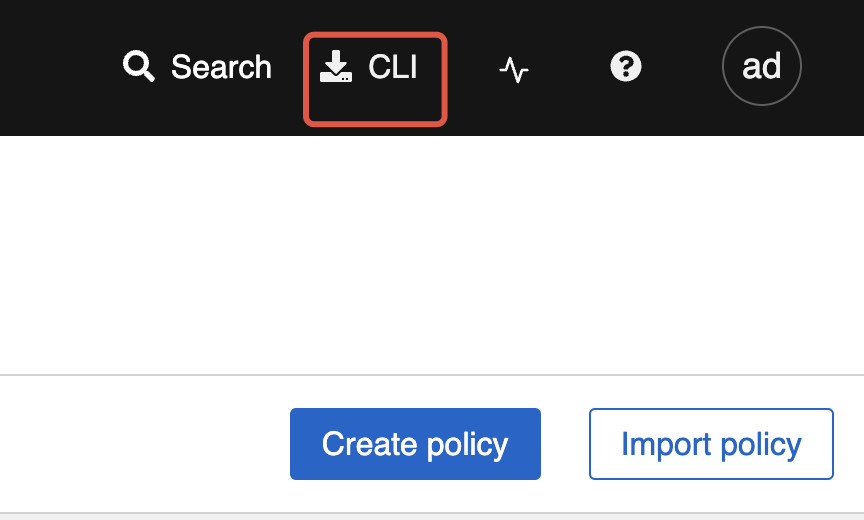
Download the binary form the Portal:
-
Make it executable:
-
(Optional) Move to a directory in your
PATH:
Install on macOS
Supported architectures:
amd64,arm64
Steps:
-
Determine your architecture:
-
Download the binary form the Portal:
-
Remove extended attributes:
-
Make it executable:
-
(Optional) Move to a directory in your
PATH:
Install on Windows
Supported architecture:
amd64
Steps:
-
Download the binary form the Portal:
-
(Optional) Add the directory containing
roxctl.exeto your systemPATH. -
Verify the installation:
Verification
After installation, verify your roxctl version:
Configuration
Setting Environment Variables
Before using roxctl, set the required environment variables:
If you use an API token for authentication:
Alternatively, you can use the --token-file option:
Note:
- Do not use both
--passwordand--token-fileoptions at the same time. - If both
ROX_API_TOKENand--token-fileare set, the CLI uses the token file. - If both
ROX_API_TOKENand--passwordare set, the CLI uses the password.
Authentication Methods
You can authenticate using an API token, administrator password (for testing only), or via the roxctl central login command.
API Token
API tokens are recommended for production and automation scenarios. They provide specific access permissions and are valid for up to one year.
To generate an API token:
- In the Alauda Container Security portal, go to Platform Configuration > Integrations.
- Under Authentication Tokens, click API Token.
- Click Generate Token.
- Enter a name and select a role with the required access.
- Click Generate and securely store the token.
To use the token:
Using the roxctl CLI
Check Authentication and User Info
To view your current authentication status and user profile:
Example output:
Review the output to ensure your authentication and permissions are correct.